PHP Management
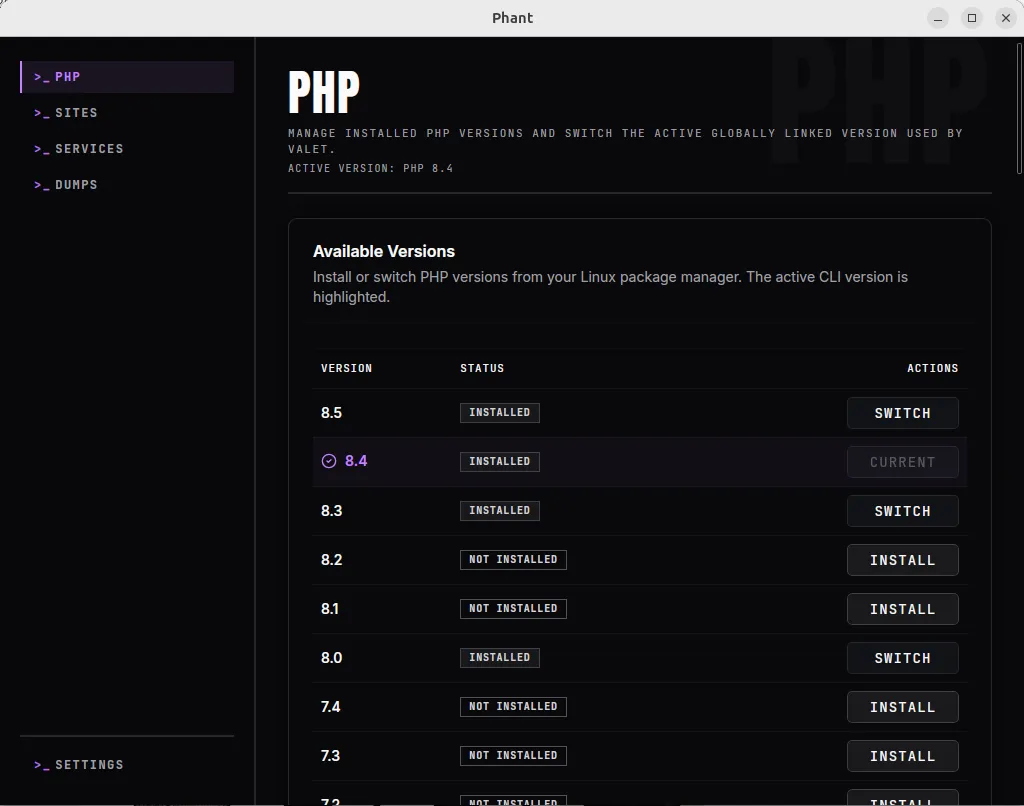
Use the PHP page to manage the PHP version Phant detects on your machine and to adjust the most common PHP runtime settings in one place.
Phant keeps the workflow app-focused, but some actions still rely on the tools and packages already present on your Linux system.
What you can do
Section titled “What you can do”- View installed and available PHP versions.
- Install a PHP version.
- Switch the active PHP version.
- Update selected
php.inisettings. - Enable or disable PHP extensions.
Open the PHP page
Section titled “Open the PHP page”In Phant, open PHP from the main navigation.
The page is divided into three main areas:
- available versions
- PHP settings
- extensions
Install a PHP version
Section titled “Install a PHP version”Use this when the version you need appears in the list but is not installed yet.
- Open
PHP. - Find the version you want in
Available Versions. - Click
Install.
What to expect:
- Phant checks the version format and system availability.
- On supported Linux setups, Phant can use your system package manager underneath.
- If elevated privileges are required, Phant may ask for them or provide suggested commands.
Expected result:
- the version becomes installed
- it remains available in the list for future switching
Switch the active PHP version
Section titled “Switch the active PHP version”Use this when you already have multiple PHP versions installed and want to change the active CLI version.
- Open
PHP. - In
Available Versions, locate an installed version that is not current. - Click
Switch.
Expected result:
- the selected version becomes the active version in Phant
- the current version row updates visually
If you also use Valet Linux, remember that switching the global CLI version does not replace all Valet-specific PHP behavior automatically. If needed, verify your Valet runtime after switching.
Update PHP settings
Section titled “Update PHP settings”Use the PHP Settings section to change the most common runtime values Phant manages.
The current UI exposes:
upload_max_filesizepost_max_sizememory_limitmax_execution_time
To update them:
- Open
PHP. - Edit one or more values in
PHP Settings. - Click
Save Settings.
Expected result:
- Phant writes a managed INI file for CLI
- Phant also targets detected PHP-FPM services when possible
- related PHP-FPM services may be restarted as part of the change
Enable or disable PHP extensions
Section titled “Enable or disable PHP extensions”Use the Extensions table when you need to change common extension state across installed PHP versions.
- Open
PHP. - Scroll to
Extensions. - Find the extension you want to change.
- Click
EnableorDisable.
Expected result:
- the extension state updates in the list
- Phant restarts detected PHP-FPM services when needed
Daily workflow
Section titled “Daily workflow”This is a practical routine for everyday work:
- Open
PHPand confirm the active version. - Switch versions if the current project needs another runtime.
- Adjust runtime limits only when the project actually requires them.
- Enable or disable extensions only when a dependency or framework requires a change.
- Re-check related project behavior after major PHP changes.
Important behavior
Section titled “Important behavior”- Some actions may require elevated privileges.
- PHP settings changes can affect both CLI and detected PHP-FPM targets.
- Extension changes can trigger PHP-FPM restarts.
- Install actions depend on what your Linux environment exposes to Phant.
Troubleshooting
Section titled “Troubleshooting”A PHP install action does not complete
Section titled “A PHP install action does not complete”Check whether:
- the version exists in the list as expected
- your system supports the required package-manager commands
- Phant returned a suggested command that needs to be run manually
A switched PHP version does not match your project behavior
Section titled “A switched PHP version does not match your project behavior”Check whether:
- the CLI version changed but your site still uses another PHP-FPM runtime
- Valet Linux needs separate verification after the switch
Settings saved but the app still behaves the same
Section titled “Settings saved but the app still behaves the same”Check whether:
- the project is actually using the PHP runtime you edited
- a related PHP-FPM service needs to be restarted or re-verified